Email Automation
AI-powered email processing that drafts responses, categorizes messages, and manages inbox workflow automatically. Works with Gmail API.
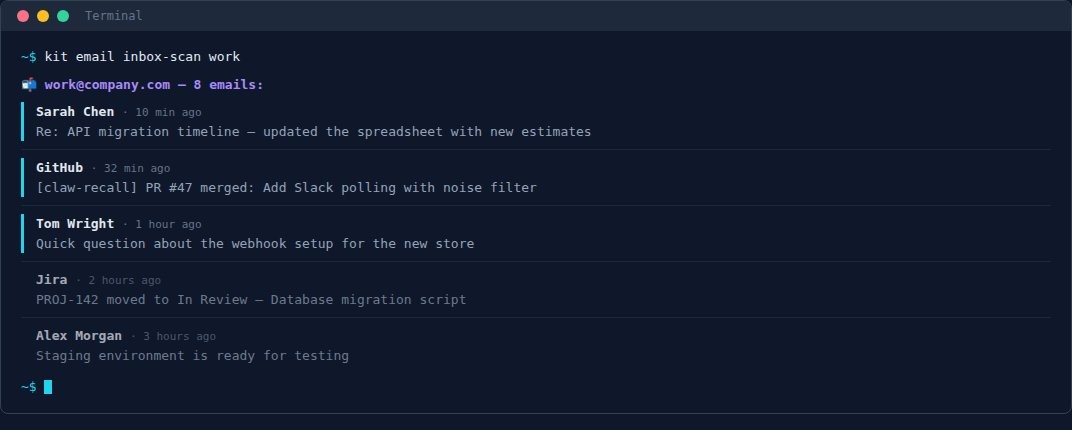
# what_it_does
Email automation lets your AI assistant manage your inbox intelligently. It can scan, categorize, draft replies, and help you process email faster.
Inbox Scanning
Categorized view of Important & Unread, Starred, and Everything Else
Smart Drafting
AI drafts replies in your voice, preserving thread context
Bulk Actions
Archive, label, or process multiple messages at once
Multi-Account
Manage personal and work accounts from one interface
# prerequisites
Before setting up email automation, you'll need:
- 1. Gmail API Credentials
Create a project in Google Cloud Console, enable Gmail API, and download OAuth credentials.
- 2. OAuth Consent
Complete the OAuth consent flow to authorize email access.
- 3. Config File
Store your credentials securely (never commit to git).
# setup_instructions
Chat Interface (ChatGPT, Claude.ai)
For chat interfaces, the AI can help you process email by analyzing screenshots or text you paste. For actual sending/archiving, you'll need to run commands separately.
# 1. Get your Gmail API credentials from Google Cloud Console
# 2. Install the email helper
pip install google-auth google-auth-oauthlib google-api-python-client

# 3. Create config file
mkdir -p ~/.config/email-automation
nano ~/.config/email-automation/gmail.json
# Add your credentials (see Configuration section below)
chmod 600 ~/.config/email-automation/gmail.json

# 4. Run the helper
python email_helper.py inbox
Paste email content into your chat and ask the AI to draft a response. Then use the helper to send it.
CLI Tools (Claude Code, Cursor, Aider)
CLI AI tools can directly execute email commands. Add the available commands to your global instructions so the AI knows what it can do.
# Add to ~/.claude/CLAUDE.md

## Email Commands

I have access to email management via the `kit email` command:

| Command | Description |
|---------|-------------|
| `kit email inbox-scan [account]` | Categorized inbox view |
| `kit email search [account] "query"` | Gmail search |
| `kit email read [account] ` | Read full message |
| `kit email draft [account]  ` | Draft a reply |
| `kit email send [account]   ` | Send new email |
| `kit email archive [account] ` | Archive message |

Accounts: `personal` | `work`

Rules:
- Always show me drafts before sending
- Use inbox-scan to see what needs attention
- Draft replies in my voice (professional but warm)
Example interaction:
AI: [runs kit email inbox-scan personal]
AI: You have 3 important unread messages...
You: Draft a reply to the one from Sarah
AI: [reads message, drafts reply]
AI: Here's my draft: "Hi Sarah, Thanks for..."
OpenClaw
OpenClaw agents can be given email management capabilities through their context. The agent uses Bash to execute email commands.
# In your agent context/system prompt

## Email Capabilities

You can manage email using these commands via Bash:

Check inbox:
kit email inbox-scan <personal|work>

Search:
kit email search <account> "search query"

Read message:
kit email read <account> <message_id>

Draft reply:
kit email draft <account> <message_id> "response body"

Send:
kit email send <account> "[email protected]" "Subject" "Body"

Guidelines:
- Check inbox when user asks about email
- Always show drafts before sending
- Sign emails appropriately for each account
The agent will use these commands when asked to handle email tasks.
# configuration
Gmail credentials should be stored in a JSON config file:
# ~/.config/email-automation/gmail_personal.json
{
  "client_id": "123456789.apps.googleusercontent.com",
  "client_secret": "GOCSPX-...",
  "refresh_token": "1//0g...",
  "token_uri": "https://oauth2.googleapis.com/token"
}

# Set permissions
chmod 600 ~/.config/email-automation/*.json
Security: Never commit credentials to git. Add the config directory to your .gitignore.