Tools & Guides
Practical tools and setup guides for working effectively with AI agents. Each includes a simple prompt you can give your agent to set it up.
CLI Toolkit
A comprehensive collection of command-line tools for AI-powered development, email management, and workflow automation. 50+ commands built from real-world use.
22 Tools Included
Communication
Social Media
E-Commerce
Content & Utilities
Universal Installation Guide — Works with Any LLM
● Chat Interface Users
Works with: ChatGPT, Claude.ai, Gemini, Perplexity, Mistral, Llama (via Groq/Together), and any web-based AI
- Download the toolkit and extract to a folder
- Open your terminal and navigate to the folder
- Run the commands manually, copying output back to your chat
- Or paste the command documentation into your chat as context
# Example prompt for your AI:
"I have the CLI toolkit installed. Help me check my email using: kit email inbox-scan personal"
● Terminal AI Agents
Works with: Claude Code, Cursor, Aider, Continue, Cody, GitHub Copilot CLI
- Extract toolkit to ~/kit or /opt/kit
- Add to PATH: export PATH="$PATH:~/kit/bin"
- Add documentation to your global AI instructions
# Add to ~/.claude/CLAUDE.md (or equivalent):
## Kit CLI Toolkit (22 tools)
Run `~/cli-toolkit/kit help` for all commands.
Email, Calendar, Drive, Docs, Sheets, Slack,
Twitter, YouTube, Facebook, Shopify, Amazon,
ShipStation, Zendesk, Monday, Transistor, Descript,
Screenshots, Video Analysis, Oura, 1Password, Cloudflare
● OpenClaw / Custom Agent Frameworks
Works with: OpenClaw, AutoGPT, CrewAI, LangChain agents, custom implementations
- Mount the toolkit in your agent's execution environment
- Add kit commands to your agent's available tools
- Include command documentation in agent context
# Agent context addition:
22 kit CLI tools available via bash:
kit email, kit cal, kit drive, kit docs, kit sheets,
kit slack, kit tweet, kit yt, kit fb, kit shop,
kit amazon, kit zendesk, kit monday, kit screenshot...
Run `kit help` for full list.
● Open Source LLMs (Local)
Works with: Llama 3, Mixtral, Qwen, DeepSeek, Phi, CodeLlama via Ollama, LM Studio, text-generation-webui
- Install toolkit locally alongside your model
- Use a tool-calling framework (e.g., Ollama functions, LangChain)
- Or run commands manually based on model suggestions
# System prompt for local models:
You can suggest kit CLI commands. The user will run them.
Available: kit email, kit cal, kit drive, kit docs, kit sheets,
kit slack, kit tweet, kit yt, kit fb, kit shop, kit amazon,
kit shipstation, kit zendesk, kit monday, kit transistor,
kit descript, kit screenshot, kit shortlink, kit oura, kit cf
Run `kit help` for full docs.
AI Email Management
AI-powered email processing that drafts responses, categorizes messages, and manages inbox workflow. Works with Gmail API.
Setup Guide →URL Shortening (is.gd)
Create short URLs instantly using the free is.gd service. Works from any terminal or can be integrated into your automation workflows.
# Simple one-liner (works anywhere):
curl -s "https://is.gd/create.php?format=simple&url=YOUR_URL"
Universal setup instructions
For Chat Interfaces (ChatGPT, Claude.ai, Gemini, etc.)
Just ask your AI: "Shorten this URL: [paste URL]" and it will generate a curl command you can run, or explain how to use is.gd directly.
For Terminal Agents (Claude Code, Cursor, Aider)
Add to your global instructions (~/.claude/CLAUDE.md):
## URL Shortening
To shorten URLs, use: curl -s "https://is.gd/create.php?format=simple&url=URL"
For OpenClaw or Custom Agents
Add to agent context: The agent can shorten URLs using the is.gd API with a simple GET request.
Principal Architect Protocol
A 6-step methodology for having AI agents improve code, prompts, or any written work. Perfect for systematic refinement and quality improvement.
View Protocol →Mentor Protocol
A UX expert review methodology for getting actionable feedback on interfaces, with tiered recommendations organized by priority.
View Protocol →tmux Setup with Welcome Banner
Terminal multiplexer setup with a dynamic welcome banner showing system status. One of the first things I recommend when working with CLI agents.
Why tmux? The most useful setup is a side-by-side split screen — one pane for your CLI agent (Claude Code, Aider, etc.), the other for logs, tests, or a second agent session. You can watch output in real time while your agent works, without switching windows.
Sessions survive SSH disconnections and terminal crashes. The welcome banner gives instant visibility into system status. Works with any CLI tool, not just AI agents.
Recommended: Side-by-Side Layout
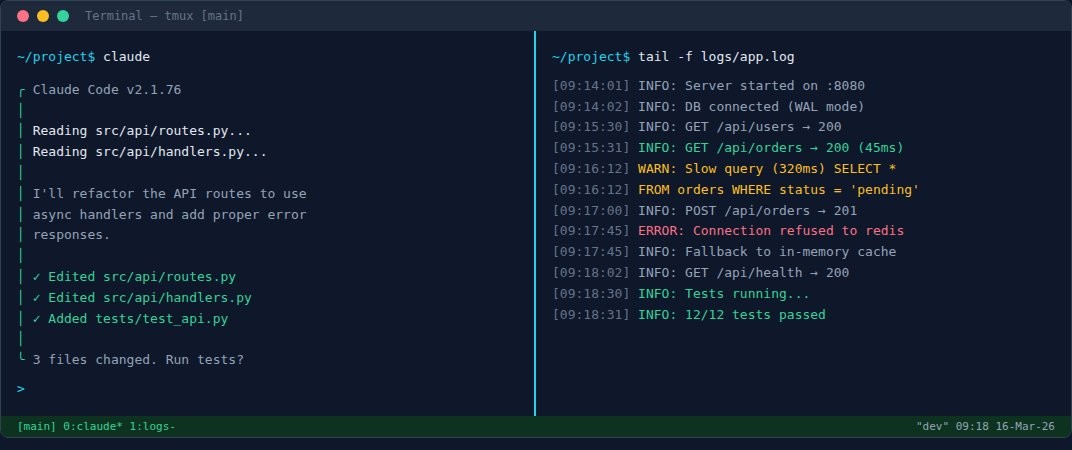
Set it up: tmux new -s main then
Ctrl+B % to split vertically.
Left pane: your agent. Right pane: logs, tests, or another session.
Getting a terminal that supports tmux
macOS
Built in. Open Terminal.app or iTerm2.
Install tmux: brew install tmux
Linux
Built in. Open any terminal.
Install tmux: sudo apt install tmux
Windows
Needs WSL (Windows Subsystem for Linux). See setup below.
Windows setup: WSL + Windows Terminal
Windows doesn't have a native Linux terminal, but WSL (Windows Subsystem for Linux) gives you a real Ubuntu environment inside Windows. Here's how to set it up:
1. Install WSL
Open PowerShell as Administrator and run:
wsl --install This installs Ubuntu by default. Restart when prompted.
2. Install Windows Terminal
Get it free from the Microsoft Store. It's much better than the old Command Prompt.
3. Set Ubuntu as default profile
Open Windows Terminal → Settings → set Default profile to Ubuntu:
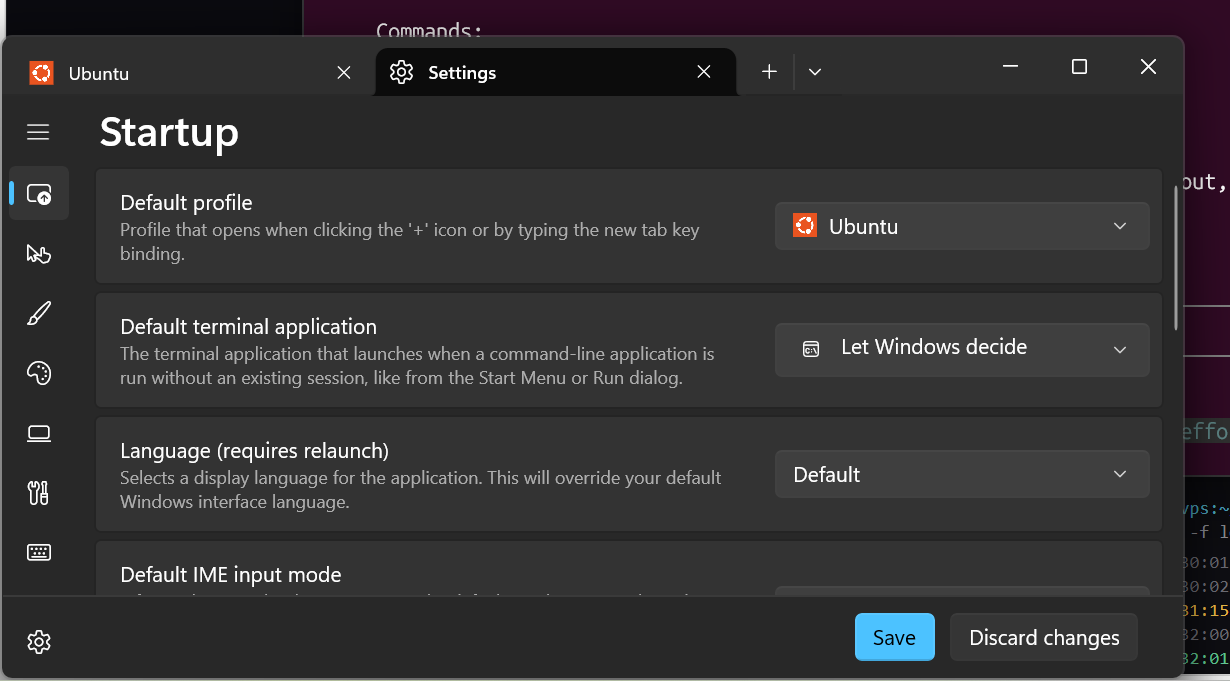
Now every new tab opens in Ubuntu/WSL with full Linux support.
4. Install tmux inside WSL
sudo apt update && sudo apt install tmux Once done, you have a real Linux terminal on Windows. Claude Code, Aider, and other CLI agents work here exactly like they do on Mac or Linux.
Welcome banner on terminal open:
rod@vps:~$
================================
vps | 2025-03-15 14:32
================================
Uptime: up 47 days, 3 hours
Disk: 12G/50G (24%)
Memory: 1.2G/4.0G
================================
rod@vps:~$ ▌
tmux with split panes (Ctrl+B then % or "):
rod@vps:~/project$
claude -p "Review this code"
✓ Reading src/app.ts...
✓ Analysis complete
Found 3 suggestions:
1. Add error handling
2. Extract helper fn
rod@vps:~/project$ ▌
rod@vps:~/project$
tail -f logs/app.log
[14:30:01] INFO: Server started
[14:30:02] INFO: DB connected
[14:31:15] WARN: Slow query
[14:32:00] INFO: Request /api
[14:32:01] INFO: 200 OK (45ms)
# Give this prompt to your AI agent:
"Please help me set up tmux with a welcome banner. I want:
1. tmux installed and configured
2. A welcome banner that shows when I open a terminal
3. The banner should display: hostname, uptime, disk usage, memory
4. Auto-attach to existing session or create new one"
View manual setup steps
# Install tmux
sudo apt install tmux

# Create tmux config
cat > ~/.tmux.conf << 'EOF'
# Enable mouse
set -g mouse on

# Start windows at 1
set -g base-index 1

# Better colors
set -g default-terminal "screen-256color"
EOF

# Create welcome banner script
cat > ~/.welcome-banner.sh << 'EOF'
#!/bin/bash
echo "================================"
echo "  $(hostname) | $(date '+%Y-%m-%d %H:%M')"
echo "================================"
echo "  Uptime: $(uptime -p)"
echo "  Disk:   $(df -h / | awk 'NR==2 {print $3 "/" $2 " (" $5 ")"}')"
echo "  Memory: $(free -h | awk 'NR==2 {print $3 "/" $2}')"
echo "================================"
EOF
chmod +x ~/.welcome-banner.sh

# Add to .bashrc or .zshrc
echo 'source ~/.welcome-banner.sh' >> ~/.bashrc
tmux key commands cheat sheet
Session Management
tmux new -s name — New session
tmux attach -t name — Attach
tmux ls — List sessions
Ctrl+B d — Detach
Pane Management
Ctrl+B % — Split vertical
Ctrl+B " — Split horizontal
Ctrl+B arrow — Navigate panes
Ctrl+B x — Close pane
# playbooks
Development playbooks and best practices guides. Give these to your AI agent for consistent, high-quality code.
Coding Practices
Core development principles: DRY, KISS, SOLID, error handling, testing philosophy, and code organization standards.
Application Styling
CSS architecture, component styling patterns, responsive design, and design system integration guidelines.
Patterns & Anti-patterns
Common design patterns, when to use them, and anti-patterns to avoid with their better alternatives.
Database Practices
Schema design, query optimization, migrations, indexing strategies, and data integrity patterns.
Performance Optimization
Frontend and backend performance patterns, caching strategies, load optimization, and profiling practices.
Web App Creation
End-to-end workflow for creating new web applications: planning, scaffolding, implementation, and deployment.
Git & GitHub
Branching, commits, pre-commit hooks, CI/CD, webhooks, and automation patterns for working with AI agents.
# configuration_guides
Set up your AI agents with proper configuration files. Examples and templates you can copy directly.
CLAUDE.md Setup
Project instructions for AI agents. Templates and examples for Claude Code and other tools.
MEMORY.md Setup
Persist context between sessions. Track decisions, progress, and where you left off.
Shared Tools Infrastructure
Single source of truth for tool documentation across multiple AI agents.
Plan Mode
How Plan Mode prevents wasted effort by getting alignment before Claude writes any code.
Voice Input for AI Agents
Talk to your agents instead of typing. 3x faster, better explanations, less fatigue. Works on Mac, Windows, Linux, and remote servers.
Setup Guide →Want the Full CLI Toolkit?
50+ commands for email automation, API integration, deployment workflows, and more. Built from years of real-world use with AI agents.
- • Email management with AI drafting
- • Calendar and scheduling automation
- • Social media tools (Twitter, YouTube)
- • Business API integrations
- • Full documentation and updates
# feedback
Spotted an error? Have a suggestion for a new tool or guide? Let me know.