Voice Input for AI Agents
Talk to your AI agents instead of typing. Give commands, describe problems, and explain what you want — at the speed of speech.
Once you start talking to your agents, you won't go back to typing prompts.
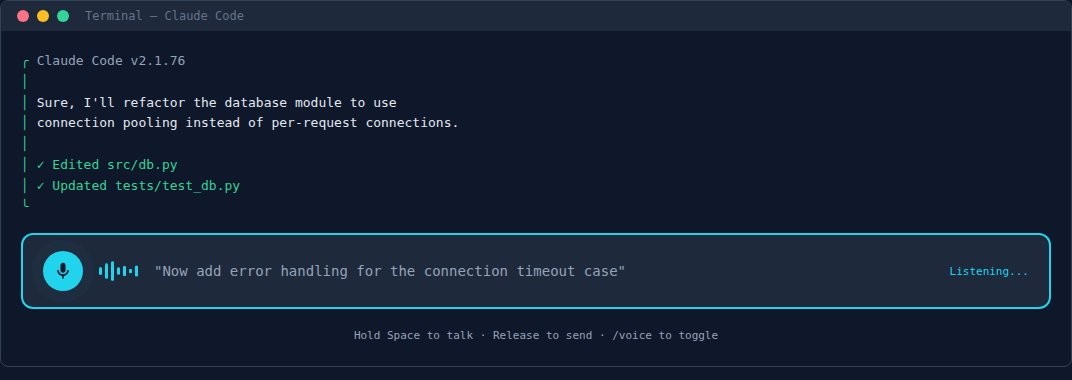
# why_voice
Faster than typing
Average typing speed: 40 words/minute. Average speaking speed: 130 words/minute. You're 3x faster talking than typing — and you can think while you speak.
Better explanations
When you type, you abbreviate. When you talk, you explain fully. Voice prompts give your agent more context and better instructions.
Less fatigue
Long coding sessions mean thousands of keystrokes. Voice input lets your hands rest while you keep working.
Multitask
Give your agent instructions while reviewing code, checking logs, or reading documentation in another pane.
# setup_by_platform
1. Claude Code (Built-in Voice Mode)
Claude Code has push-to-talk voice input built in, but you need to enable it first.
# Step 1: Enable voice mode
/voice

# Step 2: Hold Space to talk (release to send)
# Space only activates voice AFTER /voice is enabled
# Without /voice, space types a space as normal

# Rebind the key if space conflicts with your workflow:
# Edit ~/.claude/keybindings.json
# Add: "meta+k": "voice:pushToTalk"
# in a Chat context binding block

# 20 languages: English, Spanish, French, German,
# Japanese, Chinese, Korean, Portuguese, Russian, etc.
Requires v2.1.76+. Handles developer terms well (regex, OAuth, JSON).
If voice isn't responding, run claude --version to check.
2. macOS (System Dictation)
macOS has dictation built into every text field. Works with any AI tool.
Enable: System Settings → Keyboard → Dictation → On
Use: Press Fn Fn (double-tap Function key) in any text field
Language: Add languages in Dictation settings
Uses Apple's on-device speech recognition — fast, private, works offline.
3. Windows (Two Options)
Windows 11 has two voice systems. Use both for different situations.
Option A: Voice Access (Comprehensive)
Full voice control of your PC — dictation, navigation, clicking, scrolling. Always-on, runs in the background. Best for hands-free workflows.
Enable: Settings → Accessibility → Speech → Voice Access → On
Activate: Say "Voice Access wake up" or click the microphone
Dictate: Just speak — text goes into the active field
Commands: "Click [button name]", "scroll down", "select that", "delete word", "go to start"
Runs on-device. No cloud. Works offline. Windows 11 only.
Option B: Voice Typing (Quick, On-Demand)
Quick dictation — press a key, speak, done. Best for typing into a terminal or chat.
Use: Press Win + H in any text field
Stop: Say "stop listening" or press Win + H again
Punctuation: Say "period", "comma", "new line", "question mark"
Uses cloud by default. Enable "on-device speech recognition" in Settings → Time & Language → Speech for privacy.
4. Linux (Whisper + nerd-dictation)
Linux doesn't have built-in dictation, but open-source tools work well.
# Option A: nerd-dictation (lightweight, local)
pip install vosk
git clone https://github.com/ideasman42/nerd-dictation.git
# Download a Vosk model, then:
nerd-dictation begin

# Option B: Whisper (higher quality, needs GPU)
pip install openai-whisper
# Use with a hotkey script to record + transcribe
Both run entirely on your machine. No cloud, no API keys. nerd-dictation is faster; Whisper is more accurate.
5. Remote / VPS Agents
If your agent runs on a remote server, voice still works — your local machine handles the speech-to-text, and the transcribed text goes to the agent.
How it works: You SSH into your VPS and talk into your local terminal. Your OS transcribes locally, the text appears in the SSH session, and the remote agent reads it. No microphone access needed on the server.
# tips
Speak in complete thoughts. Don't dictate word by word. Describe the whole task: "I want to refactor the email helper to load credentials from a config file instead of hardcoded paths."
Use it for explanations, not code. Voice is great for describing what you want, reviewing output, and giving feedback. Let the agent write the actual code.
Combine with plan mode. Dictate your requirements, ask the agent to enter plan mode, review the plan, then walk through each step with voice confirmations.
Technical terms work. Modern speech recognition handles developer terminology well — "regex", "OAuth", "JSON", "API endpoint", "SQLite WAL mode" all transcribe correctly.
# works_with
Voice input works with any AI agent that accepts text — CLI Toolkit, Claw Recall, and any other tool on this site. You're just changing how the text gets into the terminal.